
<script type="application/ld+json" data-schema-version="grey-blog-v4"> [{"@context":"https://schema.org","@type":"BlogPosting","@id":"https://grey.co/blog/financial-tips-for-freelancers-and-creators-how-to-manage-your-finances-effectively-in-2023#article","headline":"Financial tips for freelancers and creators: How to manage Your finances effectively in 2023","description":"Learn how to manage your finances effectively as a freelancer or creator with these practical tips and strategies.","inLanguage":"en","url":"https://grey.co/blog/financial-tips-for-freelancers-and-creators-how-to-manage-your-finances-effectively-in-2023","mainEntityOfPage":{"@id":"https://grey.co/blog/financial-tips-for-freelancers-and-creators-how-to-manage-your-finances-effectively-in-2023#webpage"},"datePublished":"2023-10-19T10:43:45.829Z","dateModified":"2026-06-15T19:34:48.653Z","author":{"@type":"Person","@id":"https://grey.co/authors/fareedah-a#person","name":"Fareedah A","url":"https://grey.co/authors/fareedah-a"},"publisher":{"@type":"Organization","@id":"https://grey.co/#organization","name":"Grey","url":"https://grey.co","logo":{"@type":"ImageObject","url":"https://cdn.prod.website-files.com/6360022338a81bd6fdbb1145/6564ae1077a67e39d3c491a6_Grey%20Logo%20Lockup%20Black.svg"}},"image":{"@type":"ImageObject","@id":"https://grey.co/blog/financial-tips-for-freelancers-and-creators-how-to-manage-your-finances-effectively-in-2023#primaryimage","url":"https://cdn.prod.website-files.com/636a85d290ee58e70c17e1c0/6a301f608a6089ae6c487251_653100a6e4f6812dbe19e2a5_Managing%20finances%20(1).webp","contentUrl":"https://cdn.prod.website-files.com/636a85d290ee58e70c17e1c0/6a301f608a6089ae6c487251_653100a6e4f6812dbe19e2a5_Managing%20finances%20(1).webp","width":1200,"height":675}},{"@context":"https://schema.org","@type":"WebPage","@id":"https://grey.co/blog/financial-tips-for-freelancers-and-creators-how-to-manage-your-finances-effectively-in-2023#webpage","url":"https://grey.co/blog/financial-tips-for-freelancers-and-creators-how-to-manage-your-finances-effectively-in-2023","name":"Financial tips for freelancers and creators: How to manage Your finances effectively in 2023","description":"Learn how to manage your finances effectively as a freelancer or creator with these practical tips and strategies.","inLanguage":"en","primaryImageOfPage":{"@id":"https://grey.co/blog/financial-tips-for-freelancers-and-creators-how-to-manage-your-finances-effectively-in-2023#primaryimage"},"breadcrumb":{"@id":"https://grey.co/blog/financial-tips-for-freelancers-and-creators-how-to-manage-your-finances-effectively-in-2023#breadcrumb"}},{"@context":"https://schema.org","@type":"BreadcrumbList","@id":"https://grey.co/blog/financial-tips-for-freelancers-and-creators-how-to-manage-your-finances-effectively-in-2023#breadcrumb","itemListElement":[{"@type":"ListItem","position":1,"name":"Home","item":"https://grey.co/"},{"@type":"ListItem","position":2,"name":"Blog","item":"https://grey.co/blog"},{"@type":"ListItem","position":3,"name":"Financial tips for freelancers and creators: How to manage Your finances effectively in 2023","item":"https://grey.co/blog/financial-tips-for-freelancers-and-creators-how-to-manage-your-finances-effectively-in-2023"}]}] </script>

Financial tips for freelancers and creators: How to manage Your finances effectively in 2023

Fareedah A

TABLE OF CONTENT

SHARE THIS POST

Being a freelancer or creator empowers you to have complete control over your career. This grants you the freedom to pursue your passions and creativity, set your work hours, and even work from anywhere in the world. However, with great power comes great responsibility, particularly when managing your finances. 

Freelancing can be a rewarding career path, but it can also be challenging. Unlike traditional jobs, you don’t have the luxury of a guaranteed paycheck and often juggle multiple clients or projects simultaneously. These circumstances make it difficult to stay on top of your finances or plan effectively, especially if you’re not used to managing your money.

Here are a few reasons why financial management is so essential for you as a freelancer or creator:

  • Income can be unpredictable and since you can’t rely on a regular cash flow, financial planning can be exhausting when you don’t know where your next pay check is coming from.
  • You’re responsible for paying your taxes, health insurance and other benefits. This can be a huge financial burden, so it’s important to plan ahead.
  • To succeed as a freelancer or creator, you need to invest in your business. This includes allocating funds for things like marketing, equipment, and software to enhance your business.

Now, let’s explore some important tips and strategies you need to know to track your finances and stay on top of your money.

Set Clear Financial Goals 

The first step towards financial stability as a freelancer or creator is setting clear, achievable financial goals. Whether you’re saving for a dream vacation, paying off debt, or investing in a new camera for your content creation, having defined objectives provides you with direction and motivation. Begin by asking yourself what you want to achieve in the short and long term. Your goals should be specific, measurable, and time-bound.

For instance, instead of saying, “I want to earn more money,” set a goal like, “I need to increase my monthly income by 20% within the next six months.”

‍

653104e191b5764e9fac28ad Expense%20Insights%20by%20Grey

‍Track Your Expenses 

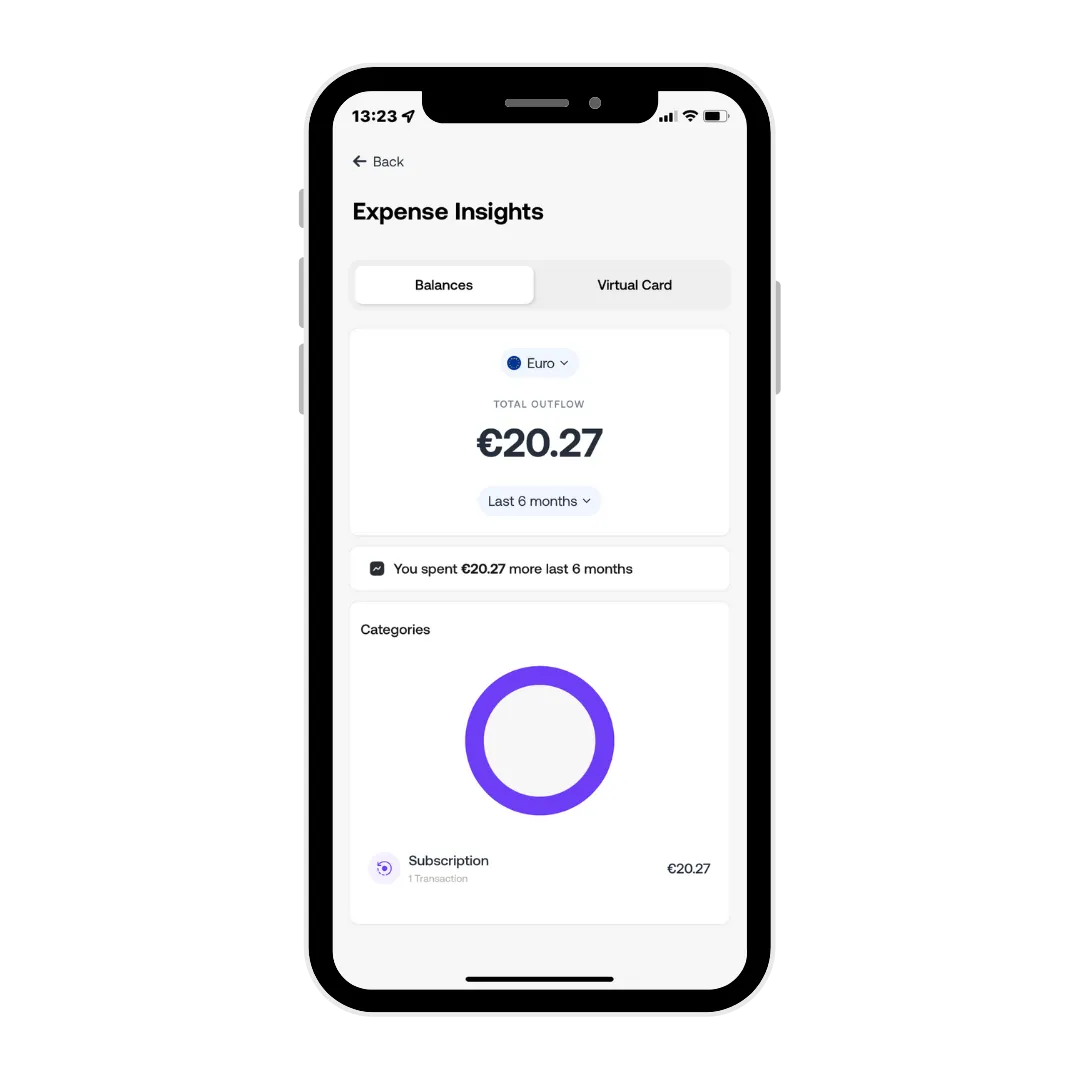
It’s easy to lose track of small expenses, as they add up really quickly if you don’t keep an eye on them. To avoid falling into the trap of overspending, track your expenses diligently. Our ‘Expense insights’ feature on the Grey app can provide a detailed breakdown of your spending habits. Make it a habit to record every cost incurred, no matter how minor it may seem. By doing this, you’ll better understand where your money is going and can make informed decisions.

Invest in Professional Development 

Investing in your skills and knowledge is a wise move for freelancers and content creators. By enhancing your abilities, you not only become competitive in your field, you attract more clients and secure higher-paying gigs. Allocate a portion of your income for education and training in your field or to acquire a new skill. You can enrol in online courses on Udemy or Udacity, attend workshops, or purchase industry-related books; these investments will pay dividends in the long run. 

Diversify Your Income Streams 

Relying solely on one source of income in this current cost-of-living crisis can be a risky proposition. Consider exploring various income avenues, such as affiliate marketing, sponsored content, online courses, digital content or even part-time consulting work. Diversification provides stability during slow periods and ensures you’re not entirely dependent on a single client or revenue source. It also increases your overall income potential.

‍

Logging your finances as a freelancer or content creator can be a headache, but it doesn’t have to be. Simplify your financial operations by using a single platform, like Grey. With Grey, you can seamlessly send invoices to clients, receive payments on time, and pay for online courses—all while conveniently tracking your expenses in one place and focusing on what you do best. Create an account on Grey to stay on top of your money and smash your financial goals!

‍

Last updated:

October 2, 2026

Open a free Grey account to get startedJoin 1 million digital nomads
IF YOU ENJOYED THIS, CHECK THESE OUT

Gemini AI photo prompts: 15 to try today

•

•

2 min read

You have a phone photo of a product on a bedsheet, or a selfie with a cluttered room behind you, and you want it to look like it came from a studio. You search for a Gemini AI photo prompt, paste in "make it look professional", and get an image that's neither what you pictured nor easy to fix.

A strong Gemini AI photo prompt names the subject, the style, the lighting, the camera framing, and the output ratio. The 15 prompts below cover portraits, product shots, restyling an existing photo, and background replacement, each written so you can swap in your own subject.

What makes a good Gemini AI photo prompt?

A good Gemini AI photo prompt states five things: the subject, the style, the lighting, the camera framing, and the output ratio. Gemini fills every gap you leave with its own guess, so each missing element is a decision made for you. A Gemini image prompt works like a brief to a photographer you've never met: the more you specify, the less is left to chance.

  • Subject: who or what is in the frame, with two or three concrete details such as age, clothing, or material.
  • Style: the look of the final image, such as editorial photo, 35mm film, watercolour, or flat lay.
  • Lighting: the direction and quality of the light, such as soft window light from the left or hard flash.
  • Camera framing: the lens look, angle, and crop, such as an 85mm portrait lens at eye level, or shot from directly above.
  • Output ratio: the shape of the image, such as 4:5 vertical or 16:9 horizontal.

Here’s a weak prompt, then the same idea rewritten with all five elements:

“Make a nice photo of a woman in a coffee shop.”

“Photo of a woman in her thirties laughing at a window table in a small coffee shop, soft mid-morning light from the window on her left, 85mm lens look with a blurred background, shot at eye level from the waist up, natural colour, 4:5 vertical.”

The first version leaves Gemini to choose nearly everything. The second makes each choice, so when you change one detail, you know what caused the difference. Writing prompts this way is a small-scale version of prompt engineering: giving a model enough specifics so it has nothing left to guess.

Five portrait prompts

Each AI portrait prompt below fixes the lighting, the lens look, and the mood, so you can see how those three choices change the result. A lens look, such as 85mm, refers to how that lens renders a face, with a narrow field of view and a blurred background; Gemini imitates it and doesn’t use a real lens. Replace the text in square brackets with your own details.

1. Window-light headshot

“Professional headshot of [describe yourself] seated beside a large window, soft overcast daylight from the left, 85mm lens look with a blurred neutral background, shoulders-up framing at eye level, calm and confident mood, 4:5 vertical.”

2. Golden-hour street portrait

“Candid portrait of [subject] walking down a city street at golden hour, low warm sunlight from behind creating a rim of light in the hair, 50mm lens look, waist-up framing, relaxed smiling mood, natural colour, 3:4 vertical.”

3. Low-key studio portrait

“Moody studio portrait of [subject] against a dark grey backdrop, one softbox from the right leaving the left side of the face in deep shadow, 105mm lens look, tight head-and-shoulders crop, serious and still mood, 1:1 square.”

4. Film-style rooftop portrait

“Portrait of [subject] on a rooftop at dusk, styled like 35mm colour film with visible grain and slightly faded colour, warm streetlight glow, 35mm lens look showing the city behind them, nostalgic mood, 3:2 horizontal.”

5. Headshot from your own photo

“Using the photo I uploaded, create a clean headshot of the same person: keep the face and hairstyle unchanged, change the outfit to a navy blazer over a white shirt, soft even studio light, plain light grey background, chest-up framing, 4:5 vertical.”

For prompt 5, upload only photos of yourself or of people who’ve agreed to it.

Five product and small business prompts

A studio product shoot means booking a photographer, a space, and a day, then repeating that whenever the range changes. A product photo AI prompt takes a few minutes per image and can be rerun until the shot is right, which helps if you sell on Instagram or WhatsApp from Lagos and photograph stock on your phone. If those listings start reaching buyers abroad, you can get paid by customers in the US, and if the shop becomes a company, you can open a Grey Business account.

6. Catalogue shot on white

Catalogue photo of [product] on a plain white background, soft even studio light with a gentle shadow beneath the item, shot straight on at product height, sharp focus across the whole item, no props, 1:1 square.

7. Flat lay with supporting items

“Flat lay photo of [product] with [two or three supporting items] on a pale linen surface, soft daylight from the top left, shot directly from above, items spaced apart with clear gaps between them, calm and tidy mood, 4:5 vertical.”

8. Lifestyle shot in use

“Lifestyle photo of [product] on a kitchen counter beside a window, morning light, shot at a 45-degree angle with a shallow depth of field, a hand reaching toward it, warm and lived-in mood, 3:2 horizontal.”

9. Close-up detail shot

“Close-up photo of [product] on a wooden table, warm side light, 100mm macro look with a shallow depth of field, focus on the texture of the material, plain background, 4:5 vertical.”

10. Story-format promo image

“Vertical promo image of [product] centred on a coloured paper backdrop in [brand colour], hard flash lighting with crisp shadows, shot straight on, empty space across the top third for text, bold and playful mood, 9:16 vertical.”

Check any lettering or logo in the result, since image models can render text incorrectly. If the text matters, add it afterwards in an editing app.

Grid of AI generated product shots from a single prompt.

Five restyling and background prompts

Gemini photo editing starts with an upload: add your photo, describe the single change you want, and say what must stay the same. Without that last part, Gemini can change the face, clothing, or framing along with the thing you asked about. It also edits step by step within one conversation, so you can replace the background first and adjust the colour afterwards.

11. Watercolour restyle

“Restyle the uploaded photo as a hand-painted watercolour: soft bleeding edges, visible paper texture, muted palette. Keep the subject's pose and the original composition unchanged, and keep the original aspect ratio.”

12. 1990s film look

“Edit the uploaded photo to look like 1990s 35mm film: warm highlights, slightly faded blacks, fine grain, gentle vignette. Keep faces, clothing, and framing exactly as they are, and keep the original aspect ratio.”

13. Ink line illustration

“Turn the uploaded photo into a clean black ink line illustration on a white background: keep the main outlines and the subject's pose, remove background detail, no shading, 1:1 square crop.”

14. Plain studio background

“Replace the background of the uploaded photo with a plain light grey studio backdrop. Keep the subject's outline, clothing, and face unchanged, adjust the lighting only where the new backdrop requires it, and add a soft shadow on the floor. Keep the original aspect ratio.”

15. New location background

“Place the subject from the uploaded photo in a busy open-air market in midday light. Keep the subject's face, pose, and clothing unchanged, match the light direction to the original photo, blur the background slightly, 3:2 horizontal.”

Photo shown before and after AI restyling.

How to get consistent results

Consistent results come from changing one thing at a time and keeping everything else in the prompt word for word. These AI photo prompt tips cover the three controls that matter most.

Iterate one variable at a time
If a portrait is too dark, change only the lighting line and regenerate. If you also change the lens look and the mood, you won't know which edit helped. Work through the five elements in order: subject, style, lighting, framing, ratio.

Seeds
A seed is the number that sets the random choices an image model makes while it generates. In the Gemini API, image requests accept a seed, and the same seed with the same prompt gives a best-effort repeat, not a guaranteed one. The Gemini app doesn’t give you a seed field to set, so within the app, the closest equivalent is to stay in the same conversation and ask for changes to the image you already have.

Aspect ratio
Put the ratio at the end of the prompt in plain words: 4:5 for vertical Instagram feed posts, 9:16 for Stories, or 1:1 for catalogue shots. If you edit an uploaded photo, Gemini usually uses that photo's original aspect ratio unless you ask for a different one.

Testing one variable at a time takes many generations, and the free plan limits how many images you can create each day, so heavy testing tends to require a paid plan. As of the time of publishing, Google lists AI Pro at $19.99 per month in the US, with prices varying by country. Some naira cards are declined for subscriptions billed in dollars, which is where a dollar card comes in.

A Grey virtual card for paying for AI subscriptions is one option: you create a Visa card in the Grey app in minutes and spend from your USD, EUR, or GBP balance, with 3D Secure asking you to approve each payment. Creating the card costs a one-time $5, with no monthly fee. If you already hold dollars, the subscription comes straight out of that balance. If you convert from naira, the 1% conversion fee (capped at $6) is about $0.20 on $19.99, plus the exchange-rate margin shown in the app before you confirm. If Google bills the plan in dollars, the 2% plus $0.50 charge on non-USD card purchases doesn’t apply. A dollar card from your own bank is the other route if it allows online dollar payments; compare its fees first.

Frequently asked questions about Gemini AI photo prompts

What is the best prompt format for Gemini images?

The best format names the subject, style, lighting, camera framing, and output ratio, in that order, in one or two plain sentences. Gemini fills any gap with its own guess, so a prompt that states all five is easier to repeat and adjust. Put the ratio last, for example, "4:5 vertical", and change one element at a time when you iterate.

Can Gemini edit a photo I upload?

Yes. Upload the photo in the Gemini app, describe the change, and say what must stay the same, such as the face, the clothing, or the framing. Gemini can make step-by-step edits within a single conversation and combine several uploaded photos into a single image.

How do I keep a character consistent across images?

Stay in one conversation and reuse the same written description of the character each time, changing only the scene. Google’s image-editing models are built to preserve a person's or pet’s likeness across edits, but small differences can still appear, so upload a reference photo when you have one. Check the face, hair, and clothing after each image before you move on.

Can I use Gemini images commercially?

Google’s terms generally allow commercial use of what you generate, but you stay responsible for what the image contains, so avoid other people’s logos, characters, and real people’s likenesses. Gemini images carry an invisible SynthID watermark, and Google’s policies prohibit circumventing it. Copyright rules for AI-generated images differ by country, so check Google’s current terms before using an image in a paid campaign. This is general guidance, not legal advice; consult a qualified lawyer for your situation.

Why does Gemini ignore part of my prompt?

Usually, because the prompt asks for too much at once or contains two conflicting instructions, such as “dark and moody light” and “bright white studio”. Cut the prompt back to the five elements, check that none contradict one another, and add details back in one at a time. Exact lettering, like text on a label, is also harder for image models to get right, so add it afterwards in an editing app.

What aspect ratios does Gemini support?

Google’s image models in the Gemini API support 10 ratios: 1:1, 2:3, 3:2, 3:4, 4:3, 4:5, 5:4, 9:16, 16:9, and 21:9, and some newer models add narrower and wider ones such as 1:4 and 8:1. In the Gemini app, you ask for a ratio in the prompt, for example “9:16 vertical” for Stories or “4:5 vertical” for an Instagram feed post. If you upload a photo to edit, Gemini usually keeps its original aspect ratio unless you ask for a different one.

Get a Grey card and pay for AI tools in USD.

eSIM vs Google Fit: Which is better for international travel?

•

•

2 min read

Before comparing these two options, I need to clarify something. Google Fi and a travel eSIM are not different technologies. Google Fi is a US mobile carrier plan that can run on an eSIM. A travel eSIM is a prepaid data plan from a different provider, also delivered as an eSIM.

The choice you have to make is between staying on your existing Google Fi plan while travelling internationally, versus buying a separate prepaid travel eSIM for the trip. That distinction shapes everything about the comparison: cost, coverage, your US phone number, and whether you need to think about your phone plan at all while you’re abroad.

What is the difference between Google Fi and a travel eSIM?

Google Fi is a US mobile carrier that roams internationally on partner networks in over 200 countries, keeping your US number active the entire time. A travel eSIM, on the other hand, is a prepaid, data-only plan purchased specifically for travel that gives you a local or regional data connection without affecting your existing carrier plan.

Google Fi can itself be delivered as an eSIM. If your phone supports eSIM and you activate Fi that way, you’re using an eSIM for your primary carrier plan. A travel eSIM would then be a second eSIM profile loaded alongside that primary eSIM, which is possible on many modern smartphones that support dual eSIM.

So while Google Fi roaming keeps your US number for calls and texts, charges within your existing monthly plan, and requires no setup before you travel. A travel eSIM gives you a separate data connection, usually at a lower per-gigabyte cost for the trip, but doesn’t carry your US number for incoming calls.

How Google Fi works abroad

Google Fi’s Unlimited Premium and Flexible plans include international data in over 200 destinations, with 5G speeds available in 110+ countries on compatible phones, tablets, laptops, and other devices.

Here’s how the plans break down for international use.

Flexible plan ($20/month base + $10/GB)

International data is included in 200+ destinations at the same $10/GB rate as domestic data. Bill Protection caps your total data charges at $60 per month, regardless of usage, so heavy data months cost at most $80 ($20 base + $60 data cap). This makes the Flexible plan surprisingly competitive for moderate users who don’t stream heavily.

Unlimited Standard (from $35/month)

Unlimited Standard supports data, calls and texts within the US, Canada and Mexico. International data beyond Canada and Mexico is not included.

Unlimited Premium ($65/month for one line)

The Unlimited Premium plan caps high-speed international roaming data at 50 GB per billing cycle, after which speeds reduce to 256 Kbps. You can pay a flat rate of $10 per gigabyte to restore unthrottled speeds before the billing cycle resets.

Unlimited Essentials

On Unlimited Essentials, international data coverage is not available. If you’re on this plan and travelling outside North America, you’ll need to either upgrade or buy a travel eSIM for data.

Extended international use

One important limitation applies to all Fi plans: extended international travel can trigger data suspension. Google Fi is designed as a US plan with international roaming, not a plan for people living abroad. Using it as your primary data source for more than 60 days continuously can result in a review of your account. This makes it excellent for trips but unsuitable as a long-term solution for digital nomads or expats.

Cost comparison for a one-week and one-month trip

The cost comparison depends on how much data you use, which plan you’re on, and where you’re travelling.

For travel eSIM pricing, verified current rates show that regional data eSIMs for popular destinations typically cost $5 to $15 for 1 GB (seven days), $15 to $30 for 5 GB (30 days), and $25 to $50 for 10 GB (30 days), depending on the region. Europe and Southeast Asia tend to be cheaper than Africa, the Middle East, and some parts of Latin America.

Scenario Google Fi Flexible Google Fi Unlimited Premium Typical travel eSIM
One-week trip, 2 GB data
$20 base + $20 data = $40 $65 (plan includes data) $8–$20 for 2 GB/7 days
One-week trip, 5 GB data $20 base + $50 data = $70
(or $80 with Bill Protection cap)
$65 (included) $15–$35 for 5 GB/7 days
One-month trip, 10 GB data
$80 (Bill Protection cap) $65 (included) $25–$50 for 10 GB/30 days
One-month trip, 20 GB data
$80 (Bill Protection cap) $65 (included) $35–$70 for 20 GB/30 days
US number kept for calls/texts Yes, included Yes, included No (data only)
Setup required before trip No No Yes (must purchase and install eSIM)

‍

Prices are indicative ranges based on current market pricing. Exact cost depends on provider, destination, and data package chosen.

For a one-week trip using moderate data, a travel eSIM is often cheaper than Google Fi Flexible. For a one-month trip using heavy data, Unlimited Premium at $65 flat becomes competitive.

The comparison also shifts depending on whether you use a Grey virtual card for spending abroad: paying for your travel eSIM in USD from a Grey balance avoids conversion fees on the purchase if you’re buying internationally.

Is Google Fi better than a travel eSIM?

It depends on your trip type. There’s no universal answer, but the decision framework is clear.

When Google Fi is the better choice:

It’s a great option if you want zero setup and is ideal for business travellers and people who change plans at the last minute. This frictionless experience is worth the price premium.

A travel eSIM typically covers one country or region. So, for example, if you’re crossing from France to Morocco to Portugal in two weeks, it is much simpler with Google Fi than with multiple travel eSIMs.

If you need your US number to be active for incoming calls, two-factor authentication, or banking apps that send SMS codes to your US number, then Google Fi is the better option. Travel eSIMs are data-only and won’t receive your US calls or texts.

Google Fi is also a better choice if you’re on Unlimited Premium and using enough data to justify the plan cost. At $65/month for 50 GB of international data, it competes well with travel eSIMs for heavy users.

When a travel eSIM is the better choice:

I’ll recommend a travel eSIM if you’re going to a single destination for a specific trip. A 10-day trip to Japan on a 5 GB travel eSIM costs $15-$25. The same trip on Google Fi Flexible costs $20 + data, and on Unlimited Premium, you’re paying $65 for a monthly plan when you only need it for 10 days.

If you’re on Unlimited Standard or Unlimited Essentials and don’t want to upgrade your whole plan for one trip, a travel eSIM can work. It lets you add international data for the trip without changing your underlying Fi plan.

Budget-conscious heavy data users will also prefer a travel eSIM. A 20 GB regional eSIM for Southeast Asia costs less than $40 from most providers. On Google Fi Flexible, 20 GB abroad costs $200 before Bill Protection kicks in.

Another scenario is when you’re travelling to a country where Fi’s partner network is weak. In some destinations, the local network Fi roam on is slower than what a local travel eSIM would give you, because travel eSIM providers can partner with multiple networks in each country rather than being tied to a single roaming agreement.

For trips that span multiple countries and involve heavy data use, buying a travel eSIM on Grey gives you a straightforward data option without committing to a full monthly plan upgrade.

How to use both: keep your number and add local data

The most practical setup for frequent international travellers is to use Google Fi and a travel eSIM simultaneously.

Most modern smartphones support dual eSIM, which means two eSIM profiles can be active simultaneously. You keep your Google Fi eSIM active for US calls, texts, and two-factor authentication codes. You activate a travel eSIM for data, which gives you faster or cheaper local connectivity without changing your primary number.

In practice, data is routed through the travel eSIM, and Calls and SMS default to your Fi number. When someone calls your US number, it rings on your phone even though your data is running on a separate line. Banking apps that send SMS codes to your US number continue to work normally.

This dual approach costs slightly more than either option alone, but solves the two main problems simultaneously: you don’t lose your number, and you don’t overpay for data in countries where local connectivity is cheap.

To set this up, you install the travel eSIM before departing (most scan a QR code in under two minutes), then in your phone’s settings assign data to the travel eSIM and calls to Fi. For detailed instructions on managing multiple eSIM profiles on an iPhone, see our guide on how to transfer an eSIM between iPhones.

Frequently asked questions about eSIM and Google Fit

Does Google Fi work internationally?

Yes. The Unlimited Premium and Flexible plans include international data in over 200 destinations. Unlimited Standard covers Canada and Mexico only. Unlimited Essentials has no international data. On Flexible, international data costs $10/GB, the same as domestic. On Unlimited Premium, up to 50 GB of high-speed international data is included, with speeds dropping to 256 Kbps after that.

Is Google Fi an eSIM?

Google Fi can be activated as an eSIM on compatible devices, but it doesn’t have to be. You can also use Google Fi with a physical SIM card. Whether Fi runs as an eSIM or a physical SIM doesn’t affect its international functionality. The relevant question for most travellers is whether to use Fi’s built-in international roaming or add a separate travel eSIM for data.

Is a travel eSIM cheaper than Google Fi?

For short trips with moderate to heavy data use, a travel eSIM is usually cheaper than Google Fi’s per-gigabyte rate on the Flexible plan. A 5 GB regional eSIM for Europe or Southeast Asia typically costs $15 to $35, while 5 GB on Google Fi Flexible costs $50 in data plus the $20 base fee. Google Fi Unlimited Premium at $65/month is more competitive for longer trips with heavy data use, as it includes 50 GB of international data.

Can I use Google Fi and a travel eSIM together?

Yes, on phones that support dual eSIM. You keep your Google Fi eSIM active for calls, texts, and your US number. You activate a travel eSIM for data. In your phone settings, you assign which line handles calls and which handles data. This gives you the best of both options: a US number that stays active for incoming calls and authentication codes, plus cheaper local data from the travel eSIM.

Does Google Fi slow data abroad?

The Unlimited Premium plan caps high-speed international roaming data at 50 GB per billing cycle, after which speeds reduce to 256 Kbps. On the Flexible plan, data continues at full speed until the Bill Protection cap is reached. In some countries, the speed you experience depends on which local network Fi is roaming on, which varies by destination and is outside Fi’s direct control. In markets where Fi’s partner network is congested or slower than alternatives, a travel eSIM on a stronger local network can be meaningfully faster.

Which is better for a long trip?

For trips longer than 30 days, Google Fi Unlimited Premium at $65/month offers 50 GB of included international data, which suits most travellers who aren’t constantly streaming video. However, Google Fi’s extended international use policy means it’s not suitable as a permanent international solution: sustained use as a primary international data source for 60+ days can trigger account review. For long-term nomads or expats, a travel eSIM renewed regularly, or a local SIM in each country, is more practical than relying on Fi as a permanent international data source.

Buy a travel eSIM in the Grey app

How to budget in foreign currencies using the Grey card

•

•

2 min read

Budgeting used to be simple. You earned money, spent money, and tracked what was left. At that time, you had only one account with one currency, which required just one mental model.

Then remote work happened.

Now you might earn in EUR, pay for tools in USD, and travel in between. Discipline isn’t enough for budgeting anymore; you also need structure because, without proper structure, even the most careful spender can lose track of where their money is going.

Your Grey card is a practical budgeting tool for people who live, work, earn, and spend across borders. I’ll explain.

Why budgeting in multiple currencies breaks down so easily

Many people who overspend don't do so because they’re irresponsible. But because their money isn’t organised in a way that reflects how they live.

It’s pretty common to be juggling subscriptions in USD, running ads in EUR, buying coffee in GBP, and somehow all on the same card. Eventually, everything blurs together. You can no longer track your Netflix renewal, that Facebook ad campaign, the flight you booked last week, or the coworking space membership. Then one day you check your balance and think, “Where did all that money go?” You know you spent it. You just can’t figure out where, or why, it felt like so much more than you expected.

It’s not that you’re careless. It’s that your money isn’t organised in a way that matches how you actually live and work. And once things start blurring, it’s nearly impossible to untangle without spending an hour combing through statements, converting currencies in your head, and still not feeling certain you’ve caught everything.

At that point, your budget is broken.

Also read: How to use your Grey card to manage all your subscriptions

What should budgeting look like when you earn and spend globally?

Clarity, separation, and control are the most crucial factors when budgeting across multiple currencies. You should be able to:

  • See exactly what each type of spending is costing you.
  • Stop or pause spending instantly when needed.
  • Protect one part of your budget from another.
  • Make changes without disrupting everything else.

The Grey card is designed around solving these exact needs.

How does the Grey card help with budgeting?

Use multiple cards to separate your spending

One of the most effective budgeting habits is separation. Instead of using a single card for everything, you can create multiple cards with clear purposes. Your Grey virtual card helps you structure your spending as such.

For example, you can create:

  • One card for subscriptions and recurring tools
  • One card for ads and growth experiments
  • One card for travel or everyday spending
  • One card per client or project

Each card acts like its own budget lane, pulling from the same balance. You don’t need to guess where the money went because you already know.

This is especially useful if you freelance, manage ads, or run multiple income streams. When spending is separated, budgeting becomes more straightforward.

Also read: How to pay for ads easily with your Grey card

Freeze cards instantly when spending goes off-track

Budgets fail when you can’t act fast enough.

With the Grey card, you can instantly freeze or unfreeze any card in the app. If a digital ad campaign starts burning through too cash, freeze the card. If a subscription you forgot about renews unexpectedly, freeze the card. If you’re travelling and want to lock down non-essential spending, freeze the card.

Freezing a card doesn’t affect your other cards or balances. It simply stops that specific spending lane, which is precisely how budgeting should work.

Set limits that protect your budget

Budgets can fail when they’re too rigid. Grey’s spending limits work more like guardrails.

You can set daily or monthly limits per card, receive alerts when you’re approaching your limit, and still stay flexible. The goal isn’t to punish spending. I mean, who wants that? It’s to keep you aware before things drift too far.

For shared cards or subscriptions, limits are especially useful. You know exactly how much can be spent, and nothing sneaks past unnoticed.

Track spending clearly in one place

When you’re budgeting across currencies, visibility matters more than perfection. Every Grey card transaction appears clearly in your app, linked to the card you used. That means you’re not just seeing how much you spent, but why you spent it.

When budgeting time comes around, you’re not sitting there trying to remember what that mysterious €47 charge was three weeks ago or why your USD balance dropped. Everything’s already categorised. The structure did the work for you.

Spend confidently across borders

Trust helps with budgeting too. When you’re shopping internationally, paying for ads, or travelling, declined payments and unexpected charges can throw everything off. The Grey Card works across global merchants and even supports Apple Pay and Google Pay, so everyday spending feels normal, even when you’re far from home.

A quick note on protection when spending abroad

An often-overlooked aspect of budgeting is preparing for contingencies in case things go wrong.

When you pay with your Grey card, you have access to Visa benefits, including purchase protection, extended warranties, and price protection, depending on the transaction and your activation status. It’s not something you think about daily, but it adds a layer of reassurance when you’re buying electronics, booking travel, or shopping internationally.

It’s one less thing to worry about while managing money across borders.

Also read: How to claim your Visa card benefits

What budgeting in foreign currencies is like with the Grey card

When your card and your accounts are aligned, budgeting stops being guesswork. You know what you’re spending, which currency your spend is coming from and more importantly, when something changes.

Instead of constantly reacting to your balance, you’re now making decisions with clarity. And that’s what good budgeting should be like, whether you’re at home, travelling, or working remotely.

If you’re ready to make your budget work wherever you are, create or update your Grey card today and start spending and budgeting in the ways that matter to you.

‍

How creators receive payouts from international platforms

•

•

2 min read

I remember my first international payout like it was yesterday. I’d spent months building an audience, finally hit the YouTube monetisation threshold, and eagerly waited for the payment from Google AdSense. When the notification came through saying the money had been sent, I felt brilliant. Proper creator now, getting paid for my work. “Tell Mr Beast to come outside!” I said.

When I checked my account, the platform had sent the money, yes, but somewhere between California and my bank account, a part of it just vanished.

That moment taught me that understanding how you get paid is just as crucial as understanding how to create content people want to watch. Over the years, I’ve learned the hard way how international payouts actually work, where money gets lost, and how to structure things so you keep more of what you earn. This is what I wish someone had told me before that first disappointing payout.

Also read: How remote employees receive salaries from abroad

How international platforms actually pay creators

Platforms don’t just send money directly to your bank account like a friend transferring you a tenner. They use intermediaries called payout processors because they’re dealing with millions of creators across dozens of countries, all expecting payment, some even in their local currency.

YouTube pays through Google AdSense. TikTok uses various regional processors. Patreon, Twitch, and Substack all rely on third-party systems to handle the actual movement of money across borders. This makes sense from their perspective. They can’t open bank accounts in every country or navigate every local banking regulation themselves.

LDMAG1

The most common payout methods

I’ve used nearly every payout method available to creators, and each has taught me something different.

Direct bank transfers

Direct bank transfers via wire seemed more professional when I started getting larger payments. But international wire transfers involve multiple banks, each charging fees. I once received a $2,000 payment that cost me nearly $90 in combined bank charges and poor exchange rates. The sender paid $25, an intermediary bank took $20, my bank charged a receiving fee, and then converted USD at a rate significantly worse than the mid-market rate. It added up fast.

Platform-specific systems

Platform-specific systems like Payoneer work better for creators on freelance marketplaces. Payoneer integrates smoothly with platforms like Upwork and Fiverr, and it’s cheaper than PayPal. I still lost 1-2% on currency conversion, though, and withdrawal fees applied depending on how I accessed the money.

Multi-currency fintech accounts

The breakthrough for me came when I discovered multi-currency fintech accounts. Services like Wise, Revolut, and Grey offer virtual bank accounts in multiple currencies, such as USD, EUR, and GBP, so you can receive payments easily. This changed everything for me.

Also read: How Nigerians working remotely protect income from FX swings

How smart creators structure their payout systems

After years of losing money unnecessarily, I finally sorted out a proper system, and it made an immediate difference.

First, I opened a multi-currency account that let me receive USD, EUR, and GBP without forced conversion. I went with Grey because it gave me proper banking details with an account number, sort code, and routing number so that platforms and clients could pay into it directly.

Next, I updated my payout details across every platform. YouTube, Patreon, freelance platforms, and direct clients, I gave them all my new account details. Some platforms required verification periods, others had specific payout cycles. But once everything was switched over, the difference was clear.

Finally, I started converting currency strategically instead of immediately. If I’m not spending the money right away, I hold it in USD until the exchange rate improves. Sometimes this saves me 2-3%, which compounds significantly over months.

Also read: How to budget in foreign currencies using the Grey card

How Grey simplifies international payouts

I’m not here to give you a sales pitch, but I do want to explain why Grey made such a difference for me specifically.

Grey gives you virtual bank accounts in USD, EUR, and GBP with proper banking details. When a platform or client pays you, the funds are deposited directly into the relevant currency account. There’s no forced conversion, no intermediary banks taking unexpected fees, and no waiting two weeks for international wires to clear.

The exchange rates are transparent. Whenever I convert, I know exactly what I’m paying, as there are no hidden fees buried in exchange-rate spreads.

For creators earning from multiple countries and platforms, having one system that handles everything is genuinely valuable. I used to juggle different platforms, but now everything flows into Grey, and I manage it all in one place.

The clarity this provides also makes tax filing significantly easier. I have clean records of what I earned, in which currency, and when.

Also read: Switching from banks to global accounts: What to know

Getting paid is part of the strategy

Treating your payout infrastructure as part of your overall creator strategy isn’t boring back-office admin. It’s keeping more of the money you’ve worked hard to earn. It’s having control over your finances instead of just accepting whatever arrives in your account. It’s being professional about your business.

The platforms will keep paying you, but they won’t optimise how you receive that money. That’s your job. Understand the fees, use the right tools, and structure your systems intelligently. Your future self will thank you.

Open your free Grey account or download the app and start receiving international payouts transparently, efficiently, and without losing money you’ve already earned.

‍

How to pay online and in stores worldwide with your phone

•

•

2 min read

I was halfway through buying coffee in Lisbon when I patted my pockets looking for my wallet and realised I’d left it in my hotel room. I wasn’t moved in the slightest. A worthy, some would even argue, better alternative — my phone — was already hovering over the card reader to complete the payment.

That was a moment of realisation of how much things had changed. A few years ago, travelling required carrying multiple cards, worrying about foreign transaction fees, and hoping the ATM wouldn’t “swallow” my card in some random city. Now I pay for nearly everything with my phone. Subscriptions, flights, groceries in foreign countries, late-night takeaway orders, anything in fact.

How does it work?

How paying with your phone actually works

When I first started using mobile payments, I assumed my phone was doing something complicated and vaguely magical. In a way, I was right.

Your phone can store your card details securely in a digital wallet. Apple Pay if you’re on iPhone, Google Pay on Android, or other regional options, depending on where you are. When you pay, your phone communicates with the payment terminal via NFC (Near Field Communication), the same technology that powers contactless cards.

You authenticate the payment using Face ID, fingerprint, or a passcode, and the transaction goes through. The money comes out of whichever card or account is linked to that digital wallet. From the merchant’s perspective, it looks like a normal card payment. From your perspective, it’s faster and more convenient than fumbling for a physical card.

Online payments work similarly. When checking out, you can use Apple Pay or Google Pay instead of typing in card details. Your phone authenticates using biometrics, and the payment processes are instant. No manually entering sixteen-digit card numbers, expiry dates, or security codes.

The convenience is brilliant. But convenience doesn’t mean cost-free.

Also read: How to budget in foreign currencies using the Grey card

Paying online from anywhere in the world

I spend a lot of money online, honestly, probably more than I should, and most of it involves foreign currencies. Subscriptions to US software services. European design tools. UK-based platforms. Occasionally, buying something from an online shop halfway across the world because it’s not available locally.

For years, I paid for everything with a local bank card and didn’t think twice about it. Every transaction went through, so I assumed it was working fine. Then I started looking at my statements more carefully and realised how much I was losing.

When you pay for something online in a foreign currency using a regular bank card, three things usually happen. Your bank converts the currency at its exchange rate, which is almost always 2 - 4% worse than the real mid-market rate. They might charge a foreign transaction fee, sometimes 2 - 3% of the purchase. And if the merchant offers to convert the currency for you at checkout (something called dynamic currency conversion), that’s usually even worse.

On a $100 subscription, you might lose $5 - $7 just to fees and poor conversion rates. Multiply that across every international payment you make in a year, and it adds up fast. I calculated mine once, it was over $600 annually. Six hundred quid, gone, for no reason other than using the wrong card.

Also read: How to use your Grey card to manage all your subscriptions

Paying in physical stores globally

Paying with your phone in physical stores works the same way contactless cards do, just more conveniently. You tap your phone on the terminal, authenticate, and the payment goes through. It’s particularly useful when travelling because you don't have to worry about carrying the right physical cards or whether a shop accepts your card network.

I’ve paid for coffee in Berlin, groceries in Dubai, transport in Tokyo and dinners in Cape Town, all with my phone. It’s seamless, and merchants barely look up because contactless payments are standard nearly everywhere now.

But again, the ease of payment doesn’t mean you’re paying efficiently. Every time I tapped my phone abroad using my regular bank card, I was getting hit with foreign transaction fees and terrible exchange rates. The transaction felt instant and painless, but my bank was quietly taking 4 - 5% every time.

The worst part is you don't see it happening. The payment just says "approved." You don't get a breakdown of fees or exchange rate markups. You only notice when you check your statement later and realise that €50 dinner somehow cost you £47 instead of £43.

LDMAG1

Why your card setup matters

If you link a regular bank card with high foreign transaction fees and poor exchange rates, your mobile payments will still cost you money. The phone is just the interface. The financial infrastructure behind it, meaning the card, the account and the currency handling, is what actually matters.

I realised this after a trip to France. I’d paid for everything with my phone, felt very modern and efficient, then checked my statement and saw I’d lost nearly £80 to conversion fees and markups over one week. My phone wasn’t the problem. My card was.

That’s when I started looking for a better setup, something designed for people who regularly spend money internationally and don’t want to lose a percentage of every transaction to avoidable fees.

Also read: How tax-free shopping works for international travellers

How Grey makes global phone payments easier

Apple Pay and Google Pay are brilliant. They make payments faster and more secure. But they don’t solve the underlying problem of whether you’re paying efficiently or expensively.

Grey changed how I think about paying with my phone because it solved the card problem, not just the payment method.

When you open a Grey account, you get USD, GBP and EUR multi-currency accounts.

The Grey card connects directly to these accounts.

What really impressed me was the control. Grey lets you create multiple cards. I've got one for subscriptions, one for travel, and one for general spending. If a card is compromised or I'm worried about a particular merchant, I can instantly freeze it in the app and create a new one in seconds. I can set spending limits, track exactly where my money is going, and budget more intelligently by separating spending categories across different cards.

For someone who earns in multiple currencies or regularly spends internationally, this setup makes a material difference. I’m not losing money every time I tap my phone. I’m spending efficiently, with full visibility and control.

The right card changes everything

I love paying with my phone. It’s faster, more secure, and more convenient than carrying a wallet full of cards.

But payments are only as good as the card linked to them. If you’re paying with your phone but using a card with high fees and poor exchange rates, you’re still losing money on every transaction. The tap is convenient, but the cost is hidden.

The right card makes mobile payments genuinely efficient, not just convenient. That’s the difference between losing hundreds annually to avoidable fees and keeping the money you earn.

Get it right by opening a free Grey account today and getting the card that works globally and transparently.

‍

How to shop in the US or Europe with your Grey card

•

•

2 min read

A few months ago, I was eyeing a pair of sneakers on a US website for weeks. Then the store started running sales and I decided to buy them (hashtag #YOLO), but my bank card declined the payment.

Not once, not twice… but four times!.

The same card that worked perfectly in Nigeria where I live, and the same details I’d used for years. I tried to get another card, but by then, sales had ended, and the sneakers were out of stock. It was annoying, but I just had to accept my L.

If you’ve ever tried to shop internationally, on sites like ASOS UK, Amazon US, Zara EU, or even the Apple Store, you may already be familiar with this pain. Sometimes the website rejects your card. Sometimes your bank blocks the transaction. Sometimes the currency conversion takes too long, and the payment times out.

It shouldn’t be this difficult to buy something online in big 2026… yet for many people, it still is.

But if you use a Grey card, you'll eliminate the uncertainty of thoughts like, “Will this payment go through?”, and transform your international shopping into a simple and predictable process.

Why shopping abroad is often frustrating

Shopping from US or European stores usually comes with these hurdles:

1. Many foreign merchants decline local cards

Some US/UK online stores automatically reject certain African-issued cards, even if you have more than enough balance.

2. Stores bill strictly in USD, GBP, or EUR

If your card requires manual currency conversion, it can cause payment delays that may result in declines.

3. Banks block “suspicious” international transactions

This usually happens when the merchant is unfamiliar.

4. Conversion errors and hidden fees

Some cards convert long after the purchase, leading to surprises on your statement.

These problems are common, but they’re also exactly what Grey card is built to avoid.

How your Grey card makes shopping internationally easy

Smart spending across multiple currencies and USDC

Your Grey card doesn’t require you to pick or switch wallets before paying. Instead, it automatically spends from your balances. Your USD account is debited first; if that’s empty, your USDC, and then the highest of your remaining balances.

This means your payment goes through as long as you have funds available in your account, without requiring you to consider currencies at checkout.

Works across major US and European stores

Your Grey card is an international spend card, so you can pay at 150 million merchants worldwide.

Use Apple Pay and Google Pay

For stores that support mobile wallets, you can simply add your Grey Visa card to Apple Pay or Google Pay. This is more secure and makes for much faster checkouts.

Create multiple cards for better organisation

If you shop frequently or mix personal and business purchases, you can:

  • Use one card for personal shopping
  • another for business imports
  • another for gift purchases

It keeps your spending clean and easy to track.

Freeze and unfreeze anytime

You can always freeze your cards to control your spending.

Better protection for online transactions

You receive real-time notifications, card controls, and instant limits - everything you need for peace of mind when buying from foreign sites.

LDMAG1

How to shop in the US or Europe with your Grey card

1. Request your Grey visa card

Create a Grey account and go to the cards section of your Grey app to request a Grey card for $5.

2. Add your card to the store’s checkout

Enter your card details or simply pay through Apple Pay/Google Pay.

3. Make your purchase normally

Shipping, duties, and taxes will be displayed as they are for every other international shopper.

4. Track everything in your Grey app

Every charge, refund, or verification appears instantly, so there are no surprises later.

Tips for smarter international shopping

  • Use a separate card for business or bulk purchases so you can easily track expenses.
  • Keep a bit extra in your wallet for shipping fees and taxes.
  • Use Apple Pay/Google Pay when available. It’s the most seamless way to tap and pay, and also supports contactless payments.

Shopping abroad doesn’t have to be stressful

Your Grey card helps you shop with confidence. There are no random declines or conversion drama. Ahead of your next international purchase, you can create your Grey card and enjoy a smoother, more predictable shopping experience.

‍

Arrow (up)

Back to top